
Backing up your photos and files is one of the most important habits you can develop to protect your digital memories and important documents. Whether you’re using a computer, smartphone, or tablet, unexpected issues like hardware failure, accidental deletion, or theft can cause you to lose valuable data. The good news is that backing up your data is easier than you might think—and you don’t have to be tech-savvy to get started.
In this guide, we’ll explore why backups matter, go over the most popular backup methods, and share tips to keep your photos and files safe.
Why Is Backing Up Important?
Imagine losing all your family photos, work projects, or personal documents in an instant due to a hard drive crash or lost phone. Without backups, these files might be gone for good. Backups serve as a safety net, allowing you to recover your important data in case something goes wrong.
Here are a few reasons why backups are essential:
– Protects against hardware breakdowns
– Guards against accidental deletion or overwriting
– Shields from malware or ransomware attacks
– Preserves files if your device gets lost or stolen
Regular backups ensure that your precious memories and important files remain safe for years to come.
Common Backup Methods
There are several ways to back up your photos and files. The best method often depends on your needs, available devices, and comfort level with technology. Let’s look at some popular options.
1. External Hard Drives
External hard drives are physical storage devices you connect to your computer via USB. They offer plenty of space (often several terabytes) to store large amounts of data.
Pros:
– Large storage capacity
– One-time cost—no monthly fees
– Easy to use with drag-and-drop or backup software
Cons:
– Can be lost, stolen, or damaged like any physical item
– Requires you to remember to back up regularly
Tips:
– Use backup software to automate the process (many computers offer built-in tools like File History for Windows or Time Machine for Mac).
– Store the external drive in a safe place away from your computer, or use two drives and rotate them regularly.
2. Cloud Storage Services
Cloud storage stores your files on remote servers accessible via the internet. Popular services include Google Drive, Dropbox, Microsoft OneDrive, and Apple iCloud.
Pros:
– Accessible from anywhere with internet
– Automatic syncing and backup options available
– Usually includes file versioning and recovery features
Cons:
– Monthly or yearly subscription fees for larger storage plans
– Dependent on internet connection speed and availability
– Privacy concerns—choose reputable providers with strong security measures
Tips:
– Start with the free storage and upgrade only if necessary.
– Use strong, unique passwords and enable two-factor authentication.
– Organize your files in the cloud just like on your computer for easy access.
3. USB Flash Drives
USB flash drives are small, portable devices that plug into your computer’s USB ports.
Pros:
– Inexpensive and easy to carry around
– Easy for quick backups or file transfers
Cons:
– Limited storage compared to hard drives and cloud
– Easier to lose or damage due to small size
– Not ideal for large or frequent backups
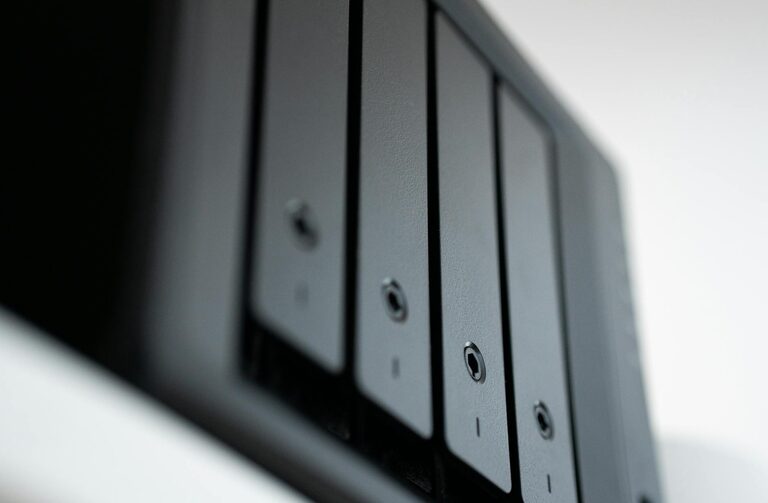
4. Network Attached Storage (NAS)
NAS devices are like mini servers for your home or office. They connect to your network and offer shared storage accessible by multiple devices.
Pros:
– Large centralized storage for multiple users
– Can be set up for automatic and scheduled backups
– Offers advanced features like remote access and media streaming
Cons:
– Higher initial cost and setup required
– May need some networking knowledge
Tips for Backing Up Effectively
Creating backups is only part of the solution. Here are tips to make your backup strategy reliable:
Maintain Multiple Copies
Follow the 3-2-1 Backup Rule for best results:
– Keep at least 3 copies of your data
– Store them on 2 different types of media (e.g., external drive and cloud)
– Keep 1 copy offsite (such as cloud storage) in case of fire or theft
Schedule Regular Backups
Data changes all the time, so schedule backups daily, weekly, or monthly depending on how often you add or edit files. Automated backups reduce the risk of forgetting.
Organize Your Files
Keep your photos and files organized in clearly labeled folders. This makes it easier to find what you need and restores data without confusion.
Check Backup Integrity
Occasionally test your backups by recovering a few files to verify everything is working properly. There’s nothing worse than finding out your backups are corrupted only when you need them.
Secure Your Backups
– Use encryption or password protection where possible
– Keep physical backup drives in a secure location
– Avoid sharing cloud access with unknown parties
Getting Started: A Simple Backup Plan
If you’re new to backing up, here’s a straightforward plan:
- **Choose your methods**: Pick at least two backup options, such as an external drive and cloud storage.
- **Gather your files**: Organize photos and important documents into a backup folder.
- **Perform your first backup**: Copy files to your chosen storage. For cloud, upload folders or enable automatic sync.
- **Set reminders**: Use calendar alerts or software to remind you to back up regularly.
- **Keep it up**: Make backups a part of your routine to stay protected.
Conclusion
Backing up your photos and files doesn’t have to be a daunting task. With many accessible tools available today, anyone can keep their important digital memories and documents safe. By understanding the basics, choosing the right backup methods, and following best practices, you can have peace of mind knowing your data is secure.
Start today—you never know when you might need a reliable backup!